> ## Documentation Index
> Fetch the complete documentation index at: https://docs.ravvio.in/llms.txt
> Use this file to discover all available pages before exploring further.
# Your First Login
> Complete guide to login methods and first-time user experience on Ravvio
## Login Methods Overview
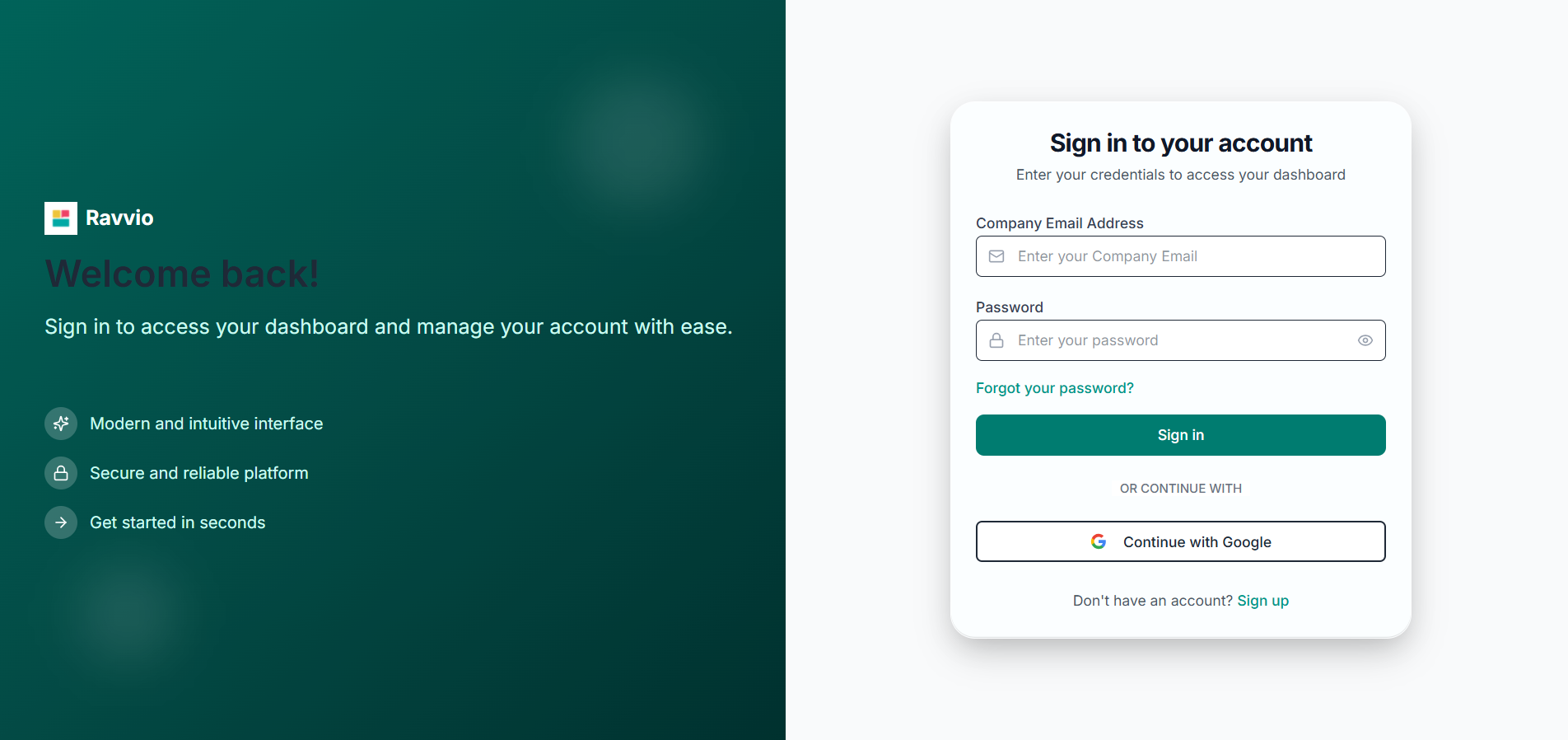
Ravvio provides two convenient ways to access your account: email/password login or Google OAuth integration, both providing immediate access to your personalized dashboard.
 ### Available Login Options
**Traditional Login**
Use your registered email and password for secure access
**Quick Access**
Sign in instantly using your Google account credentials
## Email & Password Login
### Login Process
**Navigation:**
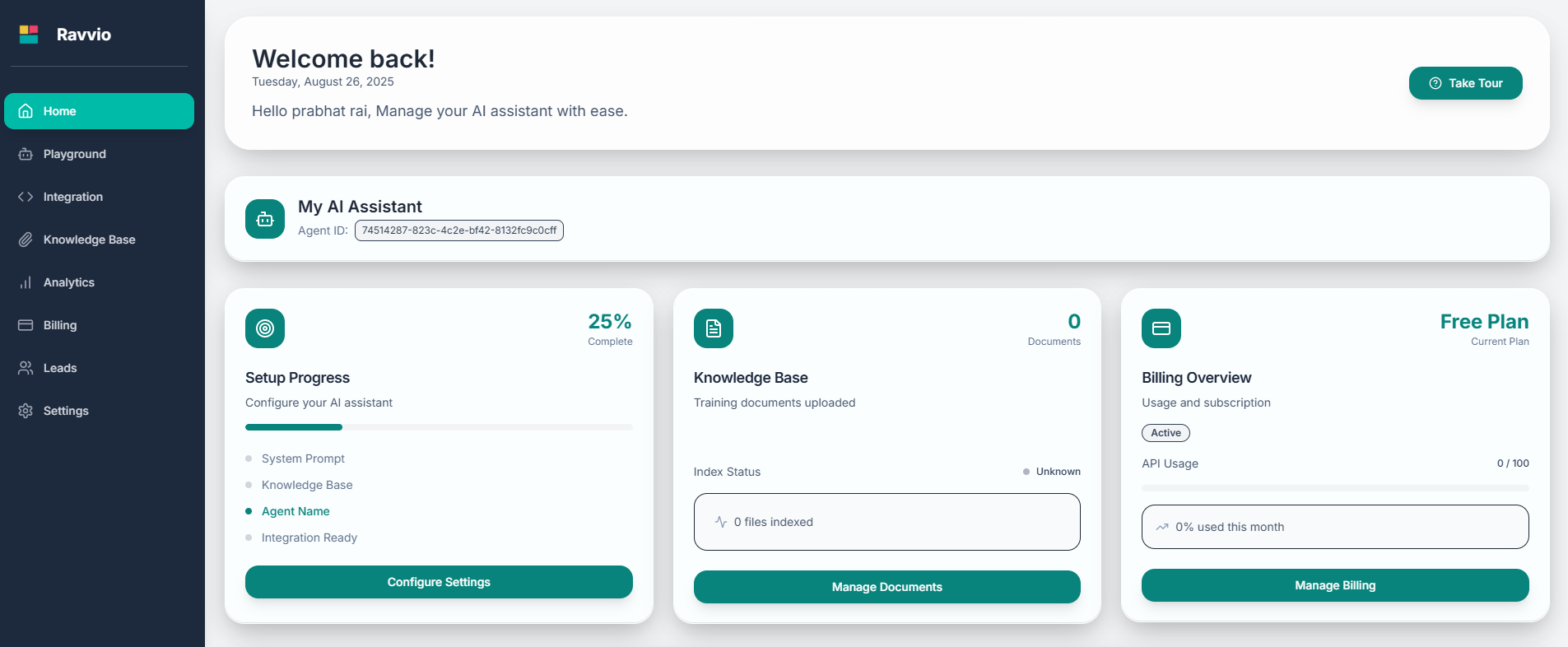
* Visit the Ravvio login page
* Enter your registered email address
* Provide your account password
* Click "Sign In" to authenticate
**System Authentication:**
* System verifies email exists in database
* Password validated using secure hashing
* Account status and permissions checked
* Authentication token generated for session
**Automatic Setup Check:**
* System ensures user has default agent created
* Creates agent if none exists (automatic fallback)
* Verifies agent configuration and accessibility
* Prepares dashboard with agent information
**Successful Login:**
* Redirected to personalized dashboard
* Active session established for platform access
* Full feature access enabled immediately
* Welcome interface displayed with setup progress
### Available Login Options
**Traditional Login**
Use your registered email and password for secure access
**Quick Access**
Sign in instantly using your Google account credentials
## Email & Password Login
### Login Process
**Navigation:**
* Visit the Ravvio login page
* Enter your registered email address
* Provide your account password
* Click "Sign In" to authenticate
**System Authentication:**
* System verifies email exists in database
* Password validated using secure hashing
* Account status and permissions checked
* Authentication token generated for session
**Automatic Setup Check:**
* System ensures user has default agent created
* Creates agent if none exists (automatic fallback)
* Verifies agent configuration and accessibility
* Prepares dashboard with agent information
**Successful Login:**
* Redirected to personalized dashboard
* Active session established for platform access
* Full feature access enabled immediately
* Welcome interface displayed with setup progress
 ### Login Validation
**Authentication Process:**
* Email address must match registered account exactly
* Case-insensitive email matching for user convenience
* Database lookup for existing user account
* Error message for non-existent accounts: "Invalid email or password"
**Security Features:**
* Prevents email enumeration with generic error messages
* Secure database queries with proper sanitization
* Rate limiting to prevent brute force attempts
* Session security with proper token management
**Secure Authentication:**
* Password compared against stored bcrypt hash
* No plain text password storage or transmission
* Secure hash comparison using industry standards
* Same generic error message for security consistency
**Failed Login Handling:**
* Generic error message: "Invalid email or password"
* No indication whether email or password was incorrect
* Protection against account enumeration attacks
* Consistent response times regardless of failure reason
## Google OAuth Login
### OAuth Authentication Flow
**OAuth Process:**
* Click "Continue with Google" button
* Redirected to Google OAuth consent screen
* Authenticate with your Google account
* Authorize Ravvio to access basic profile information
**System Processing:**
* Google returns user profile data (name, email, Google ID)
* System checks for existing account with Google provider
* Validates OAuth token and user information
* Determines login vs new account creation scenario
**Existing Google User:**
* Direct login if Google ID matches database record
* Immediate dashboard access with full functionality
* No additional verification required
**Email Conflict Resolution:**
* Same email with different provider shows appropriate message
* Clear guidance on using correct authentication method
* Security protection against account takeover attempts
**Platform Preparation:**
* System ensures user has default agent available
* Agent created automatically if missing
* Dashboard prepared with personalized information
* Full platform access granted immediately
### OAuth Security Features
**OAuth 2.0 Security:**
* Industry-standard OAuth 2.0 implementation
* Secure token validation and verification
* No password storage required for OAuth users
* Google-managed authentication security
**Identity Verification:**
* Trusted provider authentication
* Secure profile information exchange
* Protected against credential stuffing
* Automatic security updates from Google
## First Login Experience
### Dashboard Overview
Upon successful first login, you'll be welcomed with:
**Personalized Interface:**
* Personalized greeting with your name and current date
* Quick overview of account status and setup progress
* Direct access to key platform features and tools
* Navigation guide for new users
**Dashboard Components:**
* Agent status card with configuration overview
* Setup progress tracker showing completion status
* Quick action buttons for common tasks
* Recent activity and usage statistics
**Automatic Agent Creation:**
* Pre-created AI agent named "\[Your Name]'s Assistant"
* Unique agent ID generated for integration purposes
* Basic configuration ready for customization
* Integration code available for website deployment
**Agent Information Display:**
* Agent name and configuration status
* Setup completion indicators
* Direct links to customization settings
* Integration readiness status
### Setup Progress Tracker
Your dashboard includes a comprehensive progress tracker:
### Login Validation
**Authentication Process:**
* Email address must match registered account exactly
* Case-insensitive email matching for user convenience
* Database lookup for existing user account
* Error message for non-existent accounts: "Invalid email or password"
**Security Features:**
* Prevents email enumeration with generic error messages
* Secure database queries with proper sanitization
* Rate limiting to prevent brute force attempts
* Session security with proper token management
**Secure Authentication:**
* Password compared against stored bcrypt hash
* No plain text password storage or transmission
* Secure hash comparison using industry standards
* Same generic error message for security consistency
**Failed Login Handling:**
* Generic error message: "Invalid email or password"
* No indication whether email or password was incorrect
* Protection against account enumeration attacks
* Consistent response times regardless of failure reason
## Google OAuth Login
### OAuth Authentication Flow
**OAuth Process:**
* Click "Continue with Google" button
* Redirected to Google OAuth consent screen
* Authenticate with your Google account
* Authorize Ravvio to access basic profile information
**System Processing:**
* Google returns user profile data (name, email, Google ID)
* System checks for existing account with Google provider
* Validates OAuth token and user information
* Determines login vs new account creation scenario
**Existing Google User:**
* Direct login if Google ID matches database record
* Immediate dashboard access with full functionality
* No additional verification required
**Email Conflict Resolution:**
* Same email with different provider shows appropriate message
* Clear guidance on using correct authentication method
* Security protection against account takeover attempts
**Platform Preparation:**
* System ensures user has default agent available
* Agent created automatically if missing
* Dashboard prepared with personalized information
* Full platform access granted immediately
### OAuth Security Features
**OAuth 2.0 Security:**
* Industry-standard OAuth 2.0 implementation
* Secure token validation and verification
* No password storage required for OAuth users
* Google-managed authentication security
**Identity Verification:**
* Trusted provider authentication
* Secure profile information exchange
* Protected against credential stuffing
* Automatic security updates from Google
## First Login Experience
### Dashboard Overview
Upon successful first login, you'll be welcomed with:
**Personalized Interface:**
* Personalized greeting with your name and current date
* Quick overview of account status and setup progress
* Direct access to key platform features and tools
* Navigation guide for new users
**Dashboard Components:**
* Agent status card with configuration overview
* Setup progress tracker showing completion status
* Quick action buttons for common tasks
* Recent activity and usage statistics
**Automatic Agent Creation:**
* Pre-created AI agent named "\[Your Name]'s Assistant"
* Unique agent ID generated for integration purposes
* Basic configuration ready for customization
* Integration code available for website deployment
**Agent Information Display:**
* Agent name and configuration status
* Setup completion indicators
* Direct links to customization settings
* Integration readiness status
### Setup Progress Tracker
Your dashboard includes a comprehensive progress tracker:
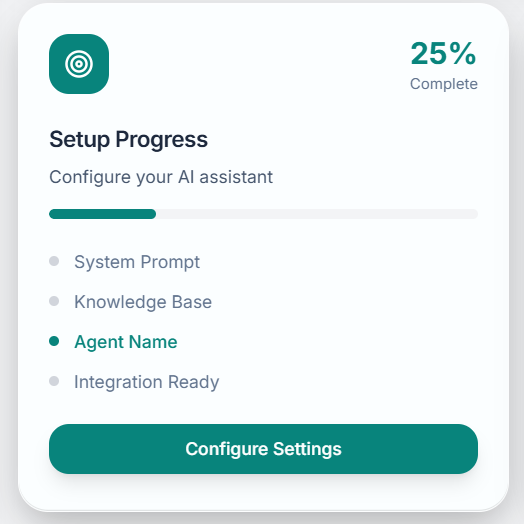 **Status**: Usually incomplete on first login
**Action Required**: Customize AI behavior, personality, and response style
**Impact**: Determines how your agent interacts with website visitors
**Status**: Empty by default
**Action Required**: Upload relevant documents to train your agent
**Impact**: Enables accurate, context-aware responses to user queries
**Status**: Set to default "\[Your Name]'s Assistant"
**Action Required**: Customize name to match your brand or purpose
**Impact**: Affects user recognition and brand consistency
**Status**: Available once other steps are complete
**Action Required**: Get integration code for your website
**Impact**: Enables deployment to your live website
## Platform Navigation
### Main Navigation Sections
**Status**: Usually incomplete on first login
**Action Required**: Customize AI behavior, personality, and response style
**Impact**: Determines how your agent interacts with website visitors
**Status**: Empty by default
**Action Required**: Upload relevant documents to train your agent
**Impact**: Enables accurate, context-aware responses to user queries
**Status**: Set to default "\[Your Name]'s Assistant"
**Action Required**: Customize name to match your brand or purpose
**Impact**: Affects user recognition and brand consistency
**Status**: Available once other steps are complete
**Action Required**: Get integration code for your website
**Impact**: Enables deployment to your live website
## Platform Navigation
### Main Navigation Sections
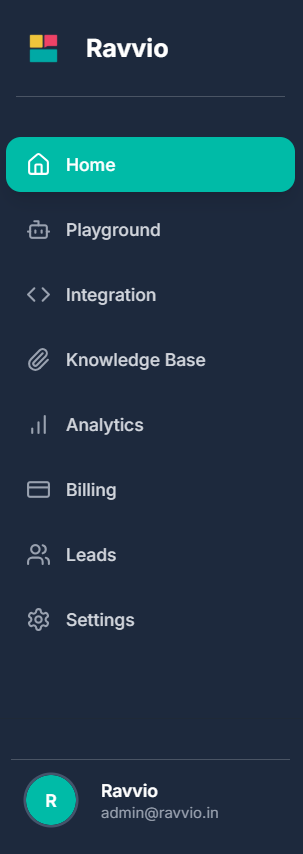 | Section | Purpose | Key Features |
| ------------------ | -------------------------- | --------------------------------------------------------- |
| **Dashboard** | Overview and quick actions | Progress tracking, metrics, quick access to common tasks |
| **Knowledge Base** | Document management | Upload, organize, and manage training content for your AI |
| **Playground** | Testing environment | Test conversations and refine agent responses safely |
| **Analytics** | Performance monitoring | Usage statistics, conversation insights, and metrics |
| **Integration** | Deployment tools | Get embed codes, customize widget appearance |
| **Billing** | Subscription management | Monitor credit usage, manage plans, view billing history |
| **Leads** | Lead management | Configure capture settings, manage lead database |
| **Profile** | Account settings | Personal information, notifications, security settings |
### Quick Actions Available
**Ready to Use:**
* Access playground for testing
* View integration code
* Upload first knowledge base documents
* Customize agent appearance and behavior
**Configuration Options:**
* Complete system prompt setup
* Organize knowledge base structure
* Configure lead capture settings
* Plan website integration strategy
## Account Features & Limits
### Free Account Benefits
Your account starts with:
**100 Free Credits:**
* Each AI message response consumes one credit
* Plenty of credits for testing and initial configuration
* Credit usage tracking in billing section
* Upgrade options available when credits are consumed
**Full Feature Access:**
* Complete agent customization capabilities
* Unlimited knowledge base document uploads
* Full playground testing environment
* Analytics and performance monitoring
* Lead capture and management tools
## Recommended First Steps
### Priority Configuration Tasks
**Initial Setup:**
* Take optional guided tour if available
* Familiarize yourself with main navigation sections
* Review dashboard components and quick actions
* Understand setup progress tracker requirements
**Agent Personality:**
* Define your agent's role and expertise
* Set appropriate tone and communication style
* Include business context and key information
* Test different prompt variations in playground
**Content Upload:**
* Upload relevant business documents
* Organize content by topic or category
* Test agent responses with new knowledge
* Refine content based on testing results
**Quality Assurance:**
* Use playground for comprehensive testing
* Test various conversation scenarios
* Refine responses and improve accuracy
* Validate business-specific information
### Support and Resources
**Available Resources:**
* Tooltips and help text throughout interface
* Context-sensitive guidance and tips
* Setup progress indicators with explanations
* Error messages with actionable solutions
**Professional Assistance:**
* Comprehensive documentation library
* Email support: [sujay@ravvio.in](mailto:sujay@ravvio.in)
* Response time: Usually within 24 hours
* Personalized assistance for setup questions
**Session Security**: Your login session remains active as long as you're using the platform. For security, always log out when using shared computers.
**Setup Strategy**: Don't rush through initial configuration. Taking time to properly set up your agent results in better performance and user experience.
**Account Security**: Keep your login credentials secure and consider the "Continue with Google" option for enhanced security if you have a Google account.
| Section | Purpose | Key Features |
| ------------------ | -------------------------- | --------------------------------------------------------- |
| **Dashboard** | Overview and quick actions | Progress tracking, metrics, quick access to common tasks |
| **Knowledge Base** | Document management | Upload, organize, and manage training content for your AI |
| **Playground** | Testing environment | Test conversations and refine agent responses safely |
| **Analytics** | Performance monitoring | Usage statistics, conversation insights, and metrics |
| **Integration** | Deployment tools | Get embed codes, customize widget appearance |
| **Billing** | Subscription management | Monitor credit usage, manage plans, view billing history |
| **Leads** | Lead management | Configure capture settings, manage lead database |
| **Profile** | Account settings | Personal information, notifications, security settings |
### Quick Actions Available
**Ready to Use:**
* Access playground for testing
* View integration code
* Upload first knowledge base documents
* Customize agent appearance and behavior
**Configuration Options:**
* Complete system prompt setup
* Organize knowledge base structure
* Configure lead capture settings
* Plan website integration strategy
## Account Features & Limits
### Free Account Benefits
Your account starts with:
**100 Free Credits:**
* Each AI message response consumes one credit
* Plenty of credits for testing and initial configuration
* Credit usage tracking in billing section
* Upgrade options available when credits are consumed
**Full Feature Access:**
* Complete agent customization capabilities
* Unlimited knowledge base document uploads
* Full playground testing environment
* Analytics and performance monitoring
* Lead capture and management tools
## Recommended First Steps
### Priority Configuration Tasks
**Initial Setup:**
* Take optional guided tour if available
* Familiarize yourself with main navigation sections
* Review dashboard components and quick actions
* Understand setup progress tracker requirements
**Agent Personality:**
* Define your agent's role and expertise
* Set appropriate tone and communication style
* Include business context and key information
* Test different prompt variations in playground
**Content Upload:**
* Upload relevant business documents
* Organize content by topic or category
* Test agent responses with new knowledge
* Refine content based on testing results
**Quality Assurance:**
* Use playground for comprehensive testing
* Test various conversation scenarios
* Refine responses and improve accuracy
* Validate business-specific information
### Support and Resources
**Available Resources:**
* Tooltips and help text throughout interface
* Context-sensitive guidance and tips
* Setup progress indicators with explanations
* Error messages with actionable solutions
**Professional Assistance:**
* Comprehensive documentation library
* Email support: [sujay@ravvio.in](mailto:sujay@ravvio.in)
* Response time: Usually within 24 hours
* Personalized assistance for setup questions
**Session Security**: Your login session remains active as long as you're using the platform. For security, always log out when using shared computers.
**Setup Strategy**: Don't rush through initial configuration. Taking time to properly set up your agent results in better performance and user experience.
**Account Security**: Keep your login credentials secure and consider the "Continue with Google" option for enhanced security if you have a Google account.