> ## Documentation Index
> Fetch the complete documentation index at: https://docs.ravvio.in/llms.txt
> Use this file to discover all available pages before exploring further.
# Create Account
> Step-by-step guide to creating your Ravvio account with email verification or Google OAuth
## Account Creation Overview
Ravvio offers two convenient ways to create your account: traditional email signup with verification or quick Google OAuth integration. Both methods provide full access to the platform features.
 ### Available Signup Methods
**Traditional Registration**
Create account with email verification via 6-digit OTP
**Quick Registration**
Sign up instantly using your Google account
## Email Signup Process
### Step-by-Step Registration
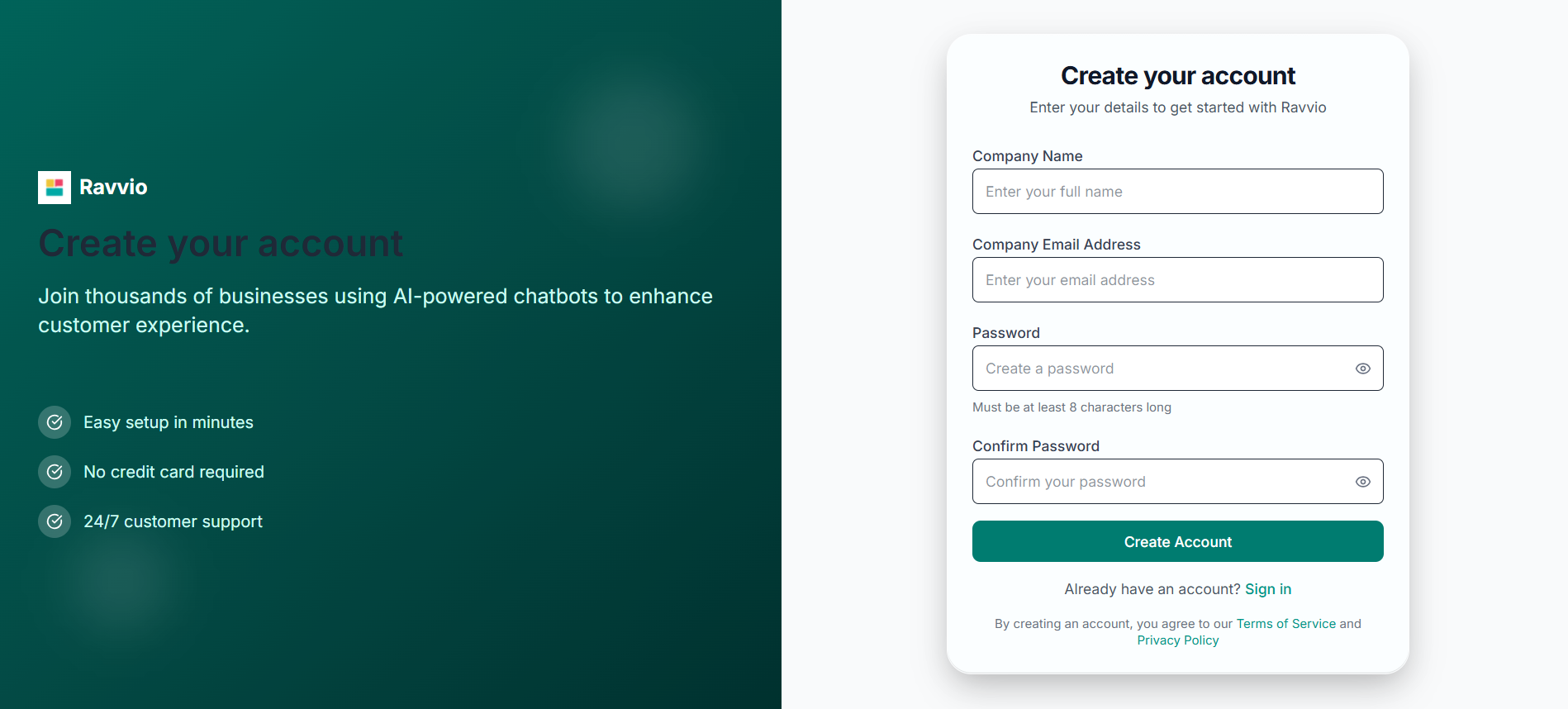
**Account Information:**
* Enter your Company name
* Provide a valid Company address
* Create a secure password
* Submit registration form
**System Validation:**
* Checks if email already exists in database
* Validates password strength requirements
* Hashes password for secure storage
* Prepares email verification process
**OTP Generation:**
* System generates 6-digit verification code
* Sets 10-minute expiration time for security
* Stores verification data temporarily in email\_verifications table
* Prepares verification email with OTP
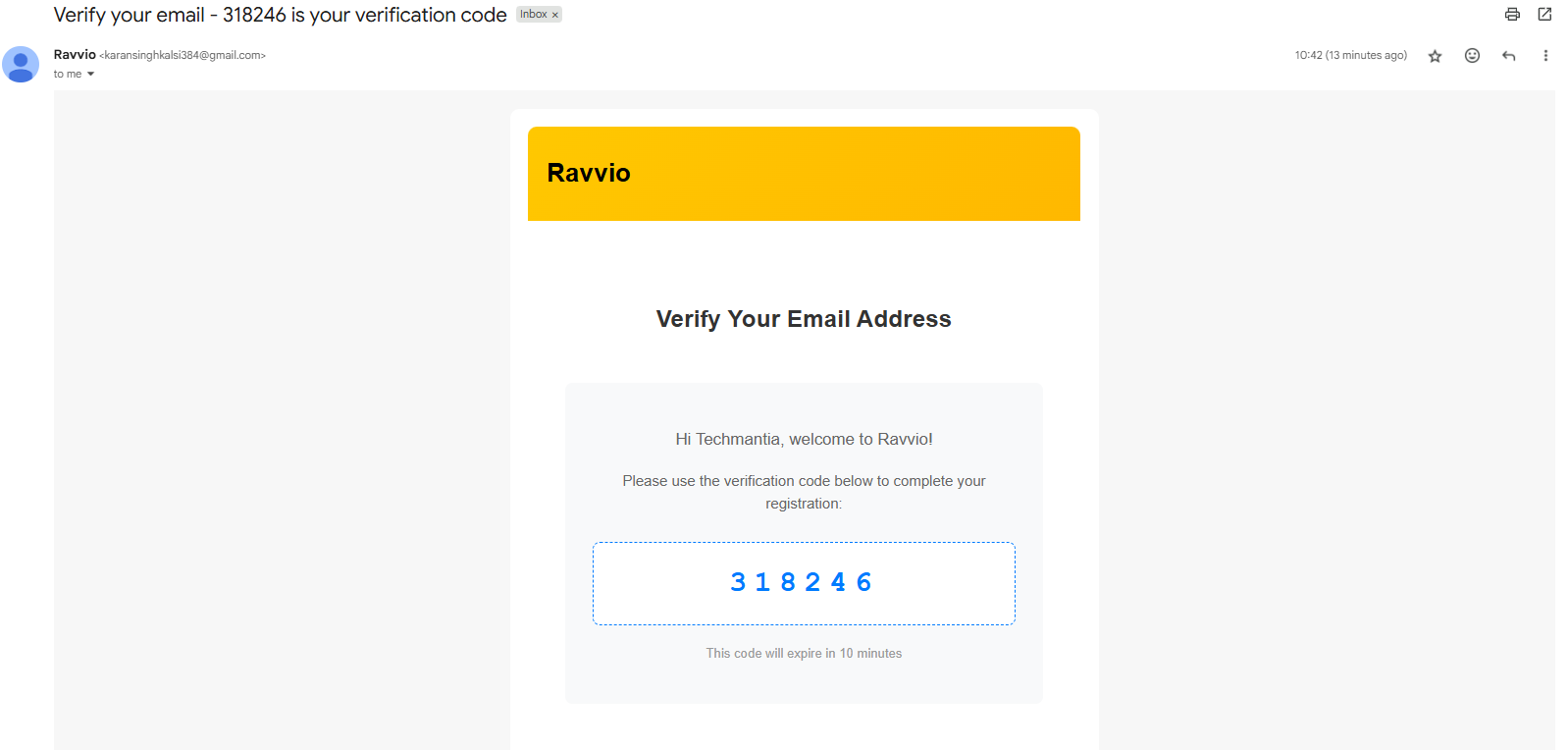
**Verification Email Sent:**
* Professional verification email delivered to your inbox
* Contains 6-digit OTP code for account activation
* Includes expiration time (10 minutes from generation)
* Clear instructions for completing verification
### Available Signup Methods
**Traditional Registration**
Create account with email verification via 6-digit OTP
**Quick Registration**
Sign up instantly using your Google account
## Email Signup Process
### Step-by-Step Registration
**Account Information:**
* Enter your Company name
* Provide a valid Company address
* Create a secure password
* Submit registration form
**System Validation:**
* Checks if email already exists in database
* Validates password strength requirements
* Hashes password for secure storage
* Prepares email verification process
**OTP Generation:**
* System generates 6-digit verification code
* Sets 10-minute expiration time for security
* Stores verification data temporarily in email\_verifications table
* Prepares verification email with OTP
**Verification Email Sent:**
* Professional verification email delivered to your inbox
* Contains 6-digit OTP code for account activation
* Includes expiration time (10 minutes from generation)
* Clear instructions for completing verification
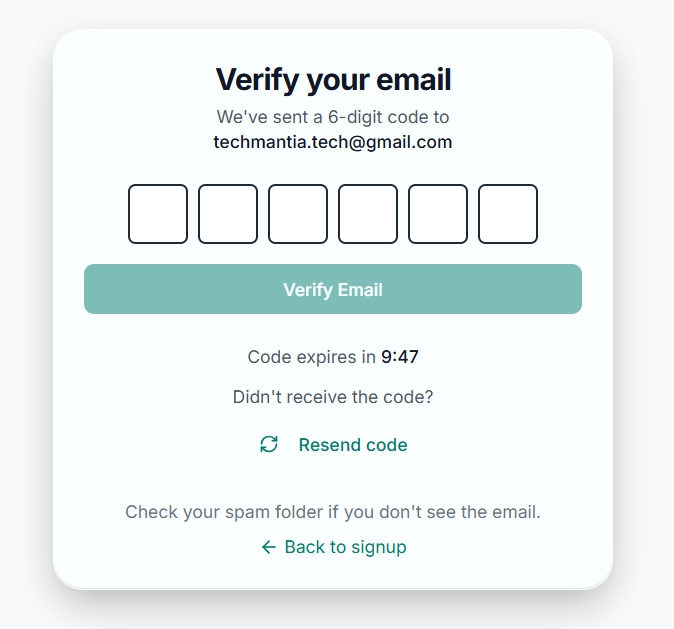
 **Complete Account Activation:**
* Enter the 6-digit OTP from your email
* System validates OTP against stored verification data
* Checks expiration time (must be within 10 minutes)
* Creates your permanent user account upon successful verification
**Complete Account Activation:**
* Enter the 6-digit OTP from your email
* System validates OTP against stored verification data
* Checks expiration time (must be within 10 minutes)
* Creates your permanent user account upon successful verification
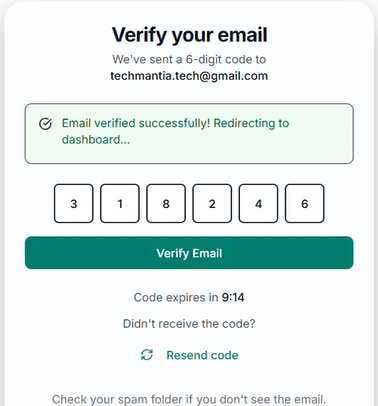
 **Final Account Setup:**
* User record created in main users table
* Email marked as verified with timestamp
* Temporary verification data cleaned up
* Welcome email automatically sent
**Final Account Setup:**
* User record created in main users table
* Email marked as verified with timestamp
* Temporary verification data cleaned up
* Welcome email automatically sent
 ### Email Verification Features
**Security Measures:**
* 6-digit numerical code for easy entry
* 10-minute expiration window for security
* Single-use verification code
* Automatic cleanup of expired codes
**Verification Benefits:**
* Confirms email ownership and deliverability
* Prevents fraudulent account creation
* Ensures communication reliability
* Complies with security best practices
**OTP Resend Options:**
* Request new OTP if original expires
* Multiple resend attempts allowed
* New 10-minute window with each resend
* Same email address validation maintained
**Resend Process:**
* Click "Resend OTP" on verification page
* New 6-digit code generated instantly
* Fresh verification email sent immediately
* Previous OTP automatically invalidated
## Google OAuth Signup
### Quick Registration Process
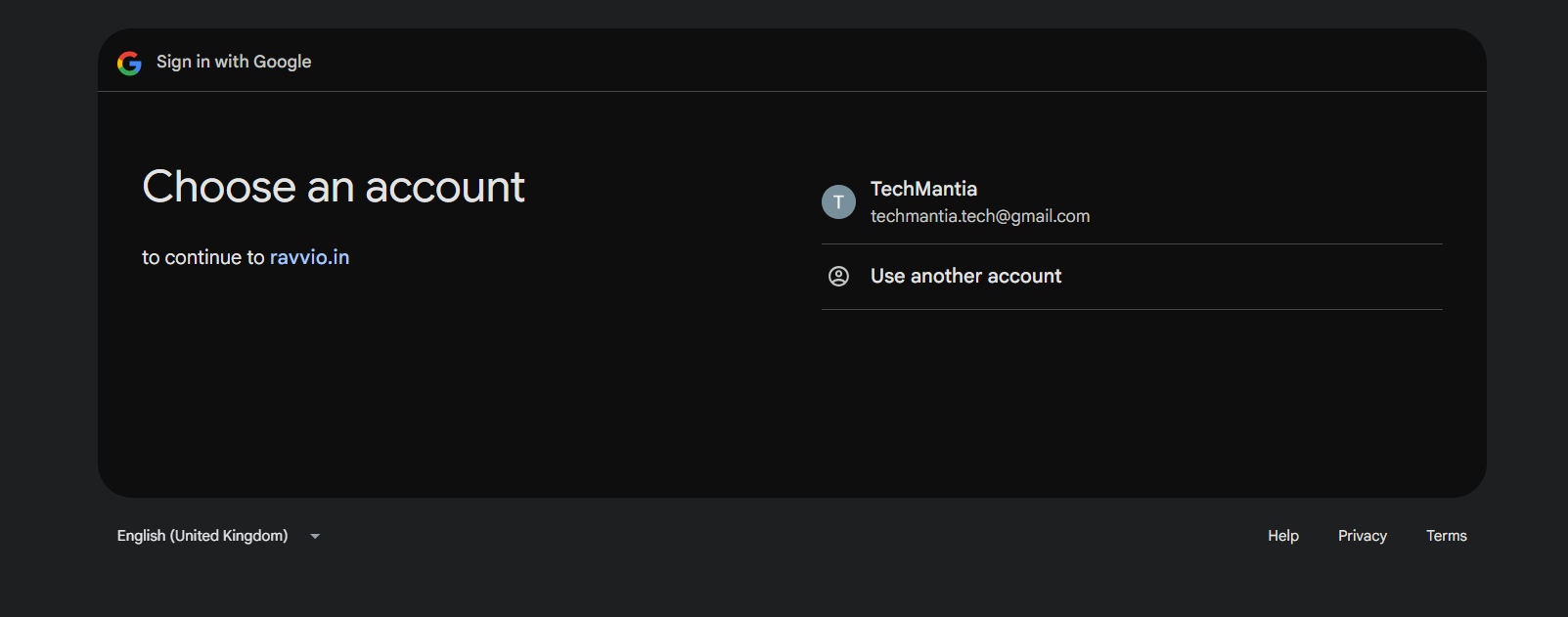
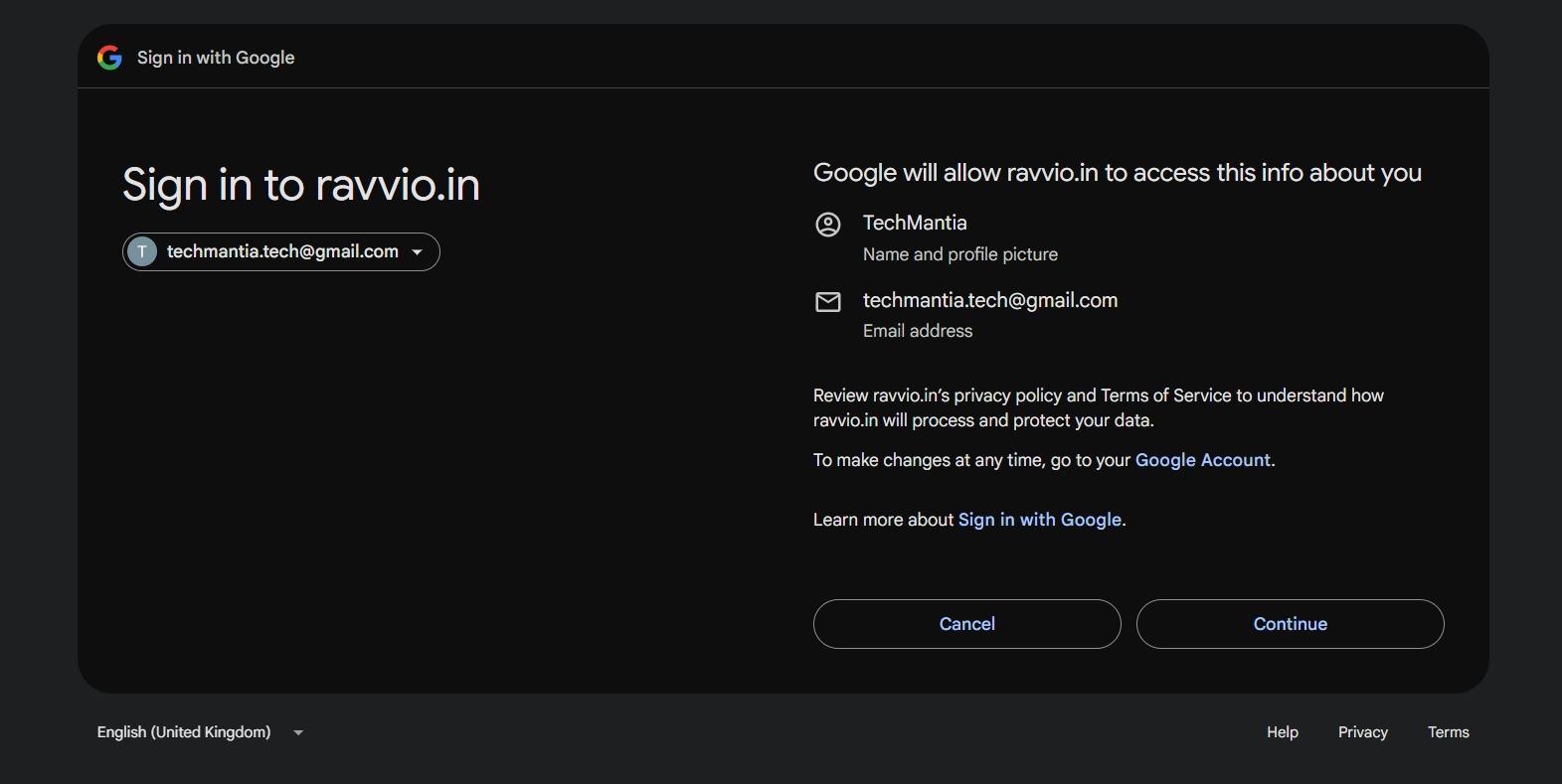
**OAuth Flow:**
* Click "Continue with Google" button
* Redirected to Google OAuth consent screen
* Authorize Ravvio to access basic profile information
* Google returns user profile data (name, email, Google ID)
### Email Verification Features
**Security Measures:**
* 6-digit numerical code for easy entry
* 10-minute expiration window for security
* Single-use verification code
* Automatic cleanup of expired codes
**Verification Benefits:**
* Confirms email ownership and deliverability
* Prevents fraudulent account creation
* Ensures communication reliability
* Complies with security best practices
**OTP Resend Options:**
* Request new OTP if original expires
* Multiple resend attempts allowed
* New 10-minute window with each resend
* Same email address validation maintained
**Resend Process:**
* Click "Resend OTP" on verification page
* New 6-digit code generated instantly
* Fresh verification email sent immediately
* Previous OTP automatically invalidated
## Google OAuth Signup
### Quick Registration Process
**OAuth Flow:**
* Click "Continue with Google" button
* Redirected to Google OAuth consent screen
* Authorize Ravvio to access basic profile information
* Google returns user profile data (name, email, Google ID)
 **System Checks:**
* Verifies if Google ID already exists in database
* Checks for existing email with different provider
* Validates Google OAuth token and user information
* Determines if this is new signup or existing user login
**System Checks:**
* Verifies if Google ID already exists in database
* Checks for existing email with different provider
* Validates Google OAuth token and user information
* Determines if this is new signup or existing user login
 **New Google User:**
* Creates new user account with Google provider
* Email automatically verified (trusted OAuth provider)
* Unique user ID generated for account
**Existing User Scenarios:**
* Existing Google user: Logs in directly
* Same email, different provider: Shows appropriate message
* Links Google account if upgrading from email signup
**Instant Platform Access:**
* No email verification required
* Automatic login after successful OAuth
* Full platform features immediately available
* Welcome email sent in background
### Google OAuth Benefits
**Instant Registration:**
* No password creation required
* Skip email verification process
* Immediate access to platform
* Trusted authentication provider
**OAuth Security:**
* Google-managed authentication
* No password storage in Ravvio
* Advanced security features from Google
* Secure token-based access
## Post-Registration Automatic Setup
### Default Agent Creation
**Default Agent Setup:**
* System automatically creates default AI agent for new user
* Agent configured with basic settings and capabilities
* Ready for immediate customization and deployment
* Ensures every user has functional agent from start
**Agent Configuration:**
* Default system prompt and personality
* Basic knowledge base structure
* Standard widget appearance settings
* Integration code ready for website deployment
**Backend Process:**
* AgentService.ensureUserHasAgent() called automatically
* Creates agent if none exists for user
* Links agent to user account permanently
* Provides foundation for platform usage
**Failure Handling:**
* Account creation succeeds even if agent creation fails
* Warning logged for manual resolution
* User can create agent manually if needed
* Support team notified for assistance
### Welcome Email System
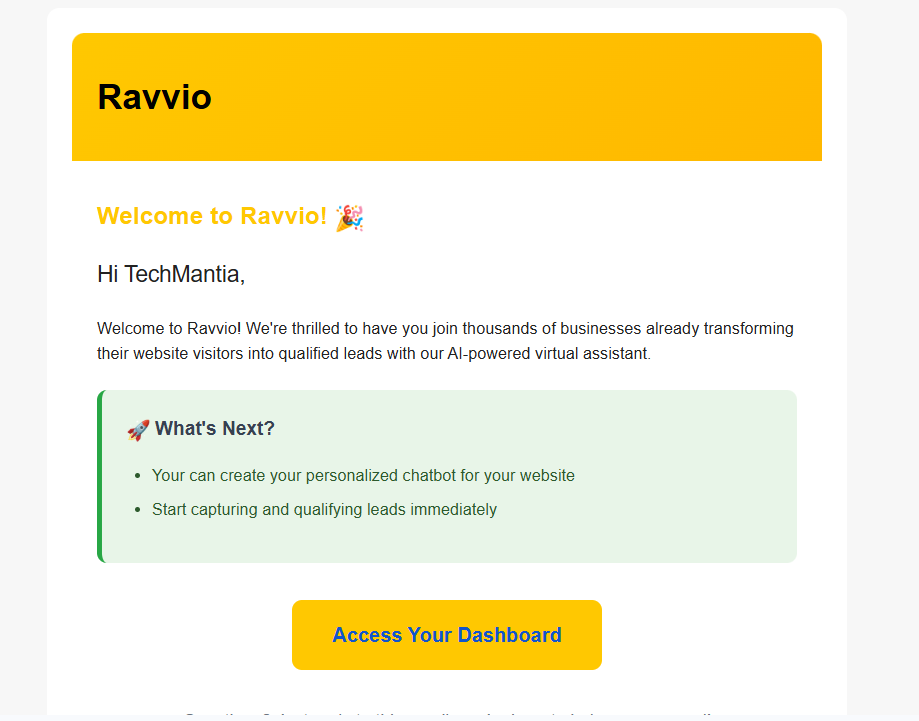
**Automated Welcome:**
* Professional welcome email sent immediately after registration
* Personalized with user's name and registration details
* Includes platform overview and getting started information
* Links to documentation and support resources
**New Google User:**
* Creates new user account with Google provider
* Email automatically verified (trusted OAuth provider)
* Unique user ID generated for account
**Existing User Scenarios:**
* Existing Google user: Logs in directly
* Same email, different provider: Shows appropriate message
* Links Google account if upgrading from email signup
**Instant Platform Access:**
* No email verification required
* Automatic login after successful OAuth
* Full platform features immediately available
* Welcome email sent in background
### Google OAuth Benefits
**Instant Registration:**
* No password creation required
* Skip email verification process
* Immediate access to platform
* Trusted authentication provider
**OAuth Security:**
* Google-managed authentication
* No password storage in Ravvio
* Advanced security features from Google
* Secure token-based access
## Post-Registration Automatic Setup
### Default Agent Creation
**Default Agent Setup:**
* System automatically creates default AI agent for new user
* Agent configured with basic settings and capabilities
* Ready for immediate customization and deployment
* Ensures every user has functional agent from start
**Agent Configuration:**
* Default system prompt and personality
* Basic knowledge base structure
* Standard widget appearance settings
* Integration code ready for website deployment
**Backend Process:**
* AgentService.ensureUserHasAgent() called automatically
* Creates agent if none exists for user
* Links agent to user account permanently
* Provides foundation for platform usage
**Failure Handling:**
* Account creation succeeds even if agent creation fails
* Warning logged for manual resolution
* User can create agent manually if needed
* Support team notified for assistance
### Welcome Email System
**Automated Welcome:**
* Professional welcome email sent immediately after registration
* Personalized with user's name and registration details
* Includes platform overview and getting started information
* Links to documentation and support resources
 **Welcome Content:**
* Platform introduction and key features overview
* Quick start guide and next steps
* Links to documentation and tutorials
* Support contact information and resources
**Internal Notifications:**
* Admin team notified of new user registrations
* User details shared for potential onboarding support
* Registration method tracked (email vs Google)
* Analytics updated for user acquisition metrics
## Account Creation Validation
### Email Verification Process
**Step-by-Step Verification:**
1. User receives email with 6-digit OTP
2. Enters OTP on verification page
3. System validates OTP and expiration time
4. Creates permanent user account
5. Sends confirmation and welcome emails
6. Redirects to dashboard with active session
**Validation Rules:**
* OTP must match exactly (6 digits)
* Must be entered within 10-minute window
* Only unused OTPs accepted
* Email address must match registration
**Common Issues:**
* Expired OTP: Shows clear message with resend option
* Invalid OTP: Prompts to check email and re-enter
* Email not received: Provides resend functionality
* Multiple attempts: Allows reasonable retry attempts
**User Support:**
* Clear error messages with actionable solutions
* Resend OTP option always available
* Support contact information provided
* Troubleshooting tips included in emails
## Troubleshooting Account Creation
### Common Issues and Solutions
**Common Issues:**
* Verification email not received
* OTP expired before entry
* Email in spam/junk folder
* Multiple registration attempts
**Potential Problems:**
* Google account access restrictions
* Browser blocking OAuth popup
* Network connectivity issues
* Corporate firewall restrictions
### Resolution Steps
**Verification Issues:**
* Check spam/junk folders for verification email
* Use resend OTP function for new code
* Ensure email address entered correctly
* Contact support if problems persist
**Technical Solutions:**
* Clear browser cache and cookies
* Try different browser or device
* Disable ad blockers temporarily
* Check internet connectivity
**OAuth Problems:**
* Allow popups from Ravvio domain
* Try incognito/private browsing mode
* Clear Google account sessions
* Use email signup as alternative
**Access Issues:**
* Verify Google account is active
* Check corporate/school restrictions
* Try different Google account
* Contact IT support for corporate accounts
**Account Verification**: Email verification is required for email signups to ensure deliverability and account security. Google OAuth users are automatically verified.
**Quick Start**: After account creation, you'll automatically have a default AI agent created and ready for customization. Check your dashboard to begin setup.
**OTP Expiration**: Email verification codes expire after 10 minutes for security. Request a new code if yours has expired.
**Welcome Content:**
* Platform introduction and key features overview
* Quick start guide and next steps
* Links to documentation and tutorials
* Support contact information and resources
**Internal Notifications:**
* Admin team notified of new user registrations
* User details shared for potential onboarding support
* Registration method tracked (email vs Google)
* Analytics updated for user acquisition metrics
## Account Creation Validation
### Email Verification Process
**Step-by-Step Verification:**
1. User receives email with 6-digit OTP
2. Enters OTP on verification page
3. System validates OTP and expiration time
4. Creates permanent user account
5. Sends confirmation and welcome emails
6. Redirects to dashboard with active session
**Validation Rules:**
* OTP must match exactly (6 digits)
* Must be entered within 10-minute window
* Only unused OTPs accepted
* Email address must match registration
**Common Issues:**
* Expired OTP: Shows clear message with resend option
* Invalid OTP: Prompts to check email and re-enter
* Email not received: Provides resend functionality
* Multiple attempts: Allows reasonable retry attempts
**User Support:**
* Clear error messages with actionable solutions
* Resend OTP option always available
* Support contact information provided
* Troubleshooting tips included in emails
## Troubleshooting Account Creation
### Common Issues and Solutions
**Common Issues:**
* Verification email not received
* OTP expired before entry
* Email in spam/junk folder
* Multiple registration attempts
**Potential Problems:**
* Google account access restrictions
* Browser blocking OAuth popup
* Network connectivity issues
* Corporate firewall restrictions
### Resolution Steps
**Verification Issues:**
* Check spam/junk folders for verification email
* Use resend OTP function for new code
* Ensure email address entered correctly
* Contact support if problems persist
**Technical Solutions:**
* Clear browser cache and cookies
* Try different browser or device
* Disable ad blockers temporarily
* Check internet connectivity
**OAuth Problems:**
* Allow popups from Ravvio domain
* Try incognito/private browsing mode
* Clear Google account sessions
* Use email signup as alternative
**Access Issues:**
* Verify Google account is active
* Check corporate/school restrictions
* Try different Google account
* Contact IT support for corporate accounts
**Account Verification**: Email verification is required for email signups to ensure deliverability and account security. Google OAuth users are automatically verified.
**Quick Start**: After account creation, you'll automatically have a default AI agent created and ready for customization. Check your dashboard to begin setup.
**OTP Expiration**: Email verification codes expire after 10 minutes for security. Request a new code if yours has expired.