> ## Documentation Index
> Fetch the complete documentation index at: https://docs.ravvio.in/llms.txt
> Use this file to discover all available pages before exploring further.
# Quick Actions
> Streamlined access to frequently used features and common tasks
## Quick Actions Overview
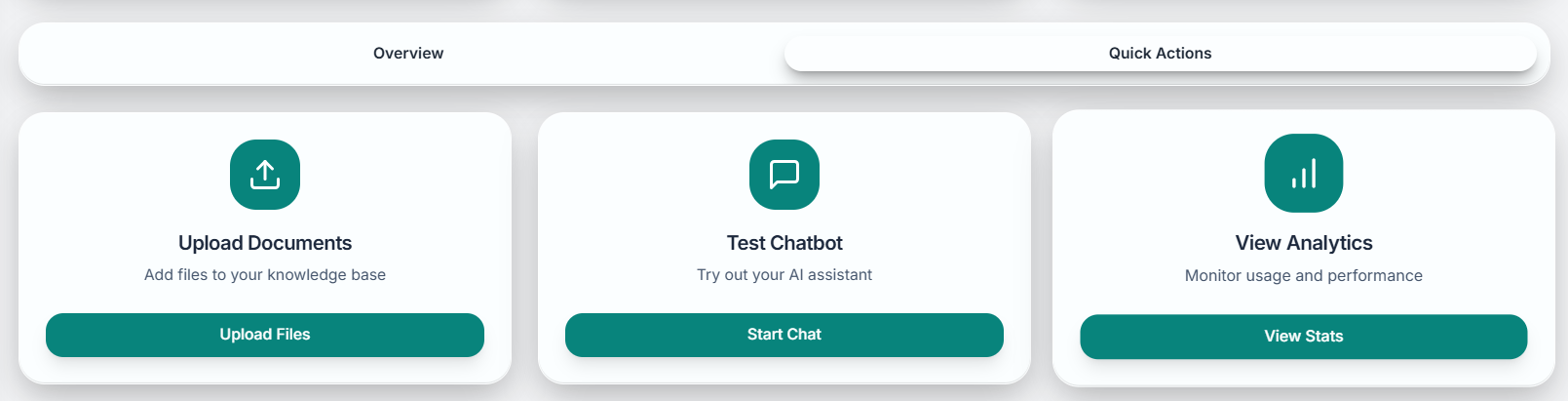 Quick Actions provide instant access to the most frequently used features and tasks, enabling efficient management of your AI agent without navigating through multiple menus.
### Action Categories
Essential configuration tasks for agent optimization
Document upload and knowledge base management
Agent testing and performance verification
Integration code generation and widget preview
## Primary Quick Actions
### Content and Configuration
**Purpose**: Add training materials to your agent's knowledge base
**Direct Access**: Skip navigation to knowledge base section
**Features**:
* Drag-and-drop file upload interface
* Multi-file selection capability
* Real-time processing status
* Format validation and optimization tips
**When to Use**: When you have new documents to add or need to update existing content
**Purpose**: Validate agent responses and behavior in playground environment
**Direct Access**: Launch playground with current configuration
**Features**:
* Pre-configured testing environment
* Real-time conversation interface
* Response quality evaluation
* Debug information access
**When to Use**: After configuration changes or before deploying updates
**Purpose**: Define or modify your agent's personality and behavior
**Direct Access**: Open system prompt editor with current settings
**Features**:
* Guided configuration wizard
* AI-powered prompt generation
* Manual editing capabilities
* Preview and testing integration
**When to Use**: During initial setup or when adjusting agent behavior
**Purpose**: Create website embedding code for your agent
**Direct Access**: Integration code generator with current settings
**Features**:
* Multiple integration methods
* Customization options preview
* Copy-to-clipboard functionality
* Installation instructions
**When to Use**: When ready to deploy agent to your website
### Monitoring and Analytics
**Access**: Comprehensive analytics dashboard with performance metrics
**Key Features**: Session tracking, message analytics, user engagement data
**Use Case**: Regular performance monitoring and optimization planning
**Access**: Real-time system status and diagnostic information
**Key Features**: Operational status, error logs, performance indicators
**Use Case**: Troubleshooting issues or verifying system stability
**Access**: Credit consumption tracking and billing information
**Key Features**: Usage statistics, plan details, upgrade options
**Use Case**: Managing subscription and monitoring resource consumption
## Context-Aware Actions
### Dynamic Quick Actions
Based on your current setup progress and agent status, the dashboard displays contextually relevant actions:
**When**: During initial configuration
**Actions**: Complete system prompt, upload first documents, test basic functionality
**When**: Agent is operational but can be improved
**Actions**: Analyze performance, update content, refine responses
**When**: Ready for website integration
**Actions**: Generate code, test integration, monitor live performance
**When**: Agent is live and operational
**Actions**: Update content, review analytics, optimize performance
### Smart Recommendations
**Incomplete System Prompt**: "Complete your agent's personality configuration"
**Empty Knowledge Base**: "Upload training documents to improve responses"
**Untested Agent**: "Test your agent before deployment"
**Missing Integration**: "Generate integration code for website deployment"
**Low Response Quality**: "Review and update system prompt"
**High Error Rate**: "Check knowledge base content and organization"
**Poor User Engagement**: "Add suggested questions or improve welcome message"
**Slow Response Times**: "Optimize document sizes or contact support"
**Increasing Usage**: "Consider upgrading plan for higher limits"
**High Engagement**: "Enable lead capture to maximize conversions"
**Good Performance**: "Expand knowledge base for broader coverage"
**Stable Operation**: "Explore advanced features and customizations"
## Batch Operations
### Multi-Task Actions
Upload multiple documents simultaneously with batch processing
Save current agent settings for easy restoration or duplication
Generate comprehensive reports covering all key metrics
Run optimization routines and cleanup operations
### Workflow Automation
Set up recurring tasks like content reviews and performance checks
Automatic actions based on specific conditions or thresholds
Handle multiple similar tasks efficiently with single commands
Save and reuse common action sequences for consistency
## Customization Options
### Personalizing Quick Actions
* Reorder actions based on frequency of use
* Pin most important actions to the top
* Hide rarely used actions to reduce clutter
* Create custom action groups for specific workflows
* Assign keyboard shortcuts to frequently used actions
* Create desktop bookmarks for direct access
* Set up mobile shortcuts for on-the-go management
* Configure voice commands for hands-free operation
* Choose between icon, text, or combined display modes
* Adjust action button sizes for accessibility
* Customize colors and styling to match preferences
* Configure hover effects and interaction feedback
### Team Collaboration
For team accounts, quick actions can be customized based on user roles and permissions.
#### Role-Based Actions
| Role | Available Actions | Restrictions |
| ------------- | --------------------------------- | -------------------------------------- |
| **Admin** | All actions available | No restrictions |
| **Editor** | Content and testing actions | Cannot modify billing or delete agents |
| **Viewer** | Analytics and monitoring only | Cannot modify configuration |
| **Developer** | Integration and technical actions | Limited content modification access |
## Performance Optimization
### Action Efficiency
Most common tasks executable with single click
Group related operations for efficient execution
Intelligent default settings to minimize required input
Real-time feedback on action completion status
### Quick Action Analytics
Track the effectiveness of your quick actions:
* **Usage Frequency**: Which actions are used most often
* **Time Savings**: Efficiency gains from streamlined access
* **Task Completion**: Success rates for different action types
* **User Satisfaction**: Feedback on quick action usefulness
Regularly review your quick action usage patterns to optimize your dashboard layout and workflow efficiency.
## Getting Help with Quick Actions
### Support Resources
* Step-by-step guides for each quick action
* Video demonstrations of common workflows
* Interactive help system with contextual tips
* Best practices for efficient task completion
* Common issues and solutions for quick actions
* Error message explanations and resolutions
* Performance optimization recommendations
* Contact information for additional support
### Keyboard Shortcuts
| Action | Shortcut | Description |
| -------------------- | -------- | --------------------------------- |
| **Upload Documents** | Ctrl+U | Open document upload dialog |
| **Test Agent** | Ctrl+T | Launch playground environment |
| **View Analytics** | Ctrl+A | Open analytics dashboard |
| **Generate Code** | Ctrl+G | Access integration code generator |
| **Refresh Data** | F5 | Update dashboard information |
Keyboard shortcuts may not be available on all devices or browsers. Use mouse/touch interactions as the primary method.
Quick Actions provide instant access to the most frequently used features and tasks, enabling efficient management of your AI agent without navigating through multiple menus.
### Action Categories
Essential configuration tasks for agent optimization
Document upload and knowledge base management
Agent testing and performance verification
Integration code generation and widget preview
## Primary Quick Actions
### Content and Configuration
**Purpose**: Add training materials to your agent's knowledge base
**Direct Access**: Skip navigation to knowledge base section
**Features**:
* Drag-and-drop file upload interface
* Multi-file selection capability
* Real-time processing status
* Format validation and optimization tips
**When to Use**: When you have new documents to add or need to update existing content
**Purpose**: Validate agent responses and behavior in playground environment
**Direct Access**: Launch playground with current configuration
**Features**:
* Pre-configured testing environment
* Real-time conversation interface
* Response quality evaluation
* Debug information access
**When to Use**: After configuration changes or before deploying updates
**Purpose**: Define or modify your agent's personality and behavior
**Direct Access**: Open system prompt editor with current settings
**Features**:
* Guided configuration wizard
* AI-powered prompt generation
* Manual editing capabilities
* Preview and testing integration
**When to Use**: During initial setup or when adjusting agent behavior
**Purpose**: Create website embedding code for your agent
**Direct Access**: Integration code generator with current settings
**Features**:
* Multiple integration methods
* Customization options preview
* Copy-to-clipboard functionality
* Installation instructions
**When to Use**: When ready to deploy agent to your website
### Monitoring and Analytics
**Access**: Comprehensive analytics dashboard with performance metrics
**Key Features**: Session tracking, message analytics, user engagement data
**Use Case**: Regular performance monitoring and optimization planning
**Access**: Real-time system status and diagnostic information
**Key Features**: Operational status, error logs, performance indicators
**Use Case**: Troubleshooting issues or verifying system stability
**Access**: Credit consumption tracking and billing information
**Key Features**: Usage statistics, plan details, upgrade options
**Use Case**: Managing subscription and monitoring resource consumption
## Context-Aware Actions
### Dynamic Quick Actions
Based on your current setup progress and agent status, the dashboard displays contextually relevant actions:
**When**: During initial configuration
**Actions**: Complete system prompt, upload first documents, test basic functionality
**When**: Agent is operational but can be improved
**Actions**: Analyze performance, update content, refine responses
**When**: Ready for website integration
**Actions**: Generate code, test integration, monitor live performance
**When**: Agent is live and operational
**Actions**: Update content, review analytics, optimize performance
### Smart Recommendations
**Incomplete System Prompt**: "Complete your agent's personality configuration"
**Empty Knowledge Base**: "Upload training documents to improve responses"
**Untested Agent**: "Test your agent before deployment"
**Missing Integration**: "Generate integration code for website deployment"
**Low Response Quality**: "Review and update system prompt"
**High Error Rate**: "Check knowledge base content and organization"
**Poor User Engagement**: "Add suggested questions or improve welcome message"
**Slow Response Times**: "Optimize document sizes or contact support"
**Increasing Usage**: "Consider upgrading plan for higher limits"
**High Engagement**: "Enable lead capture to maximize conversions"
**Good Performance**: "Expand knowledge base for broader coverage"
**Stable Operation**: "Explore advanced features and customizations"
## Batch Operations
### Multi-Task Actions
Upload multiple documents simultaneously with batch processing
Save current agent settings for easy restoration or duplication
Generate comprehensive reports covering all key metrics
Run optimization routines and cleanup operations
### Workflow Automation
Set up recurring tasks like content reviews and performance checks
Automatic actions based on specific conditions or thresholds
Handle multiple similar tasks efficiently with single commands
Save and reuse common action sequences for consistency
## Customization Options
### Personalizing Quick Actions
* Reorder actions based on frequency of use
* Pin most important actions to the top
* Hide rarely used actions to reduce clutter
* Create custom action groups for specific workflows
* Assign keyboard shortcuts to frequently used actions
* Create desktop bookmarks for direct access
* Set up mobile shortcuts for on-the-go management
* Configure voice commands for hands-free operation
* Choose between icon, text, or combined display modes
* Adjust action button sizes for accessibility
* Customize colors and styling to match preferences
* Configure hover effects and interaction feedback
### Team Collaboration
For team accounts, quick actions can be customized based on user roles and permissions.
#### Role-Based Actions
| Role | Available Actions | Restrictions |
| ------------- | --------------------------------- | -------------------------------------- |
| **Admin** | All actions available | No restrictions |
| **Editor** | Content and testing actions | Cannot modify billing or delete agents |
| **Viewer** | Analytics and monitoring only | Cannot modify configuration |
| **Developer** | Integration and technical actions | Limited content modification access |
## Performance Optimization
### Action Efficiency
Most common tasks executable with single click
Group related operations for efficient execution
Intelligent default settings to minimize required input
Real-time feedback on action completion status
### Quick Action Analytics
Track the effectiveness of your quick actions:
* **Usage Frequency**: Which actions are used most often
* **Time Savings**: Efficiency gains from streamlined access
* **Task Completion**: Success rates for different action types
* **User Satisfaction**: Feedback on quick action usefulness
Regularly review your quick action usage patterns to optimize your dashboard layout and workflow efficiency.
## Getting Help with Quick Actions
### Support Resources
* Step-by-step guides for each quick action
* Video demonstrations of common workflows
* Interactive help system with contextual tips
* Best practices for efficient task completion
* Common issues and solutions for quick actions
* Error message explanations and resolutions
* Performance optimization recommendations
* Contact information for additional support
### Keyboard Shortcuts
| Action | Shortcut | Description |
| -------------------- | -------- | --------------------------------- |
| **Upload Documents** | Ctrl+U | Open document upload dialog |
| **Test Agent** | Ctrl+T | Launch playground environment |
| **View Analytics** | Ctrl+A | Open analytics dashboard |
| **Generate Code** | Ctrl+G | Access integration code generator |
| **Refresh Data** | F5 | Update dashboard information |
Keyboard shortcuts may not be available on all devices or browsers. Use mouse/touch interactions as the primary method.